The desktop app can now show the platform in a panel inside Sixgree's own window, with your network in a sidebar. What the browser plugin does, what counts as a profile view, and the trade-offs, including a local debugging connection.
5 min readBy Blake Burford
Update, 17 October 2026: Outlink, which this post mentions, has been removed: Separation does its job, and a profile opens one per press.
Update, 19 October 2026: Messages & follow-ups, whose Messages card this post mentions, has been removed too.
Update, 2.5.1: the header button and the people list described below are gone. The browser plugin is now the LinkedIn tab (Feed, Messaging, Notifications, Jobs), with Back and Forward, and every profile opens straight in the panel. See the release notes.
Sixgree tells you who connects you to someone. Until now, though, it lived in one window and the platform in another, and you switched between them to remember who could introduce you.
Since 2.5.0, the desktop app can put the two side by side. This post covers what that looks like, what Sixgree does and doesn't do while you browse, and the trade-offs, which are real.
Sixgree's own browser
It started in 2.4.0 as a way for scans to run inside Sixgree. In the desktop app, with a scanner plugin installed, the platform shows in a panel under Sixgree's header, so the tabs, the notch and the scan light stay in sight, and the scanner drives that panel instead of opening a separate Chrome window. A thin bar over it says what's happening there, with Back to Sixgree.
2.5.0 opens that panel to your own browsing.
The browser plugin
Install the browser plugin from Settings → Plugins. It's a new kind of plugin, a feature plugin: the package holds a description and no code, and the feature itself is part of Sixgree, shown only while the plugin is installed and switched on.
With it, a button at the top right of the header, beside the bell and Settings, opens the platform inside Sixgree for your own browsing. Scroll, click, search and message as you would anywhere. On the right sits Sixgree's people list:
Search your network by name, company or place, and see each person's card.
Open someone's profile in the panel in one click.
See who's on screen. On anyone's profile, the list shows what Sixgree already knows about them: their degree, tier, location, mutuals, and who connects you. Or it says they aren't in your network data.
It's handy in practice: you land on a profile from a post or a message, and the sidebar already says whether you're two steps away and through whom. It's the who can introduce you question, answered on the page you're looking at.
The match happens on your computer. All the app's page learns about the panel is whether it's showing and which profile address it's on, and that address is compared with the network you already have. Nothing is sent anywhere.
Section tabs
The same plugin adds a tab whose buttons in the notch open the panel straight on Feed, Messaging, Notifications or Jobs, under the header and the notch. Wander off from there and the bar offers Back to Feed, or whichever section you came from. It's your own browsing, so nothing is read or counted.
What counts, and what doesn't
This is the line worth knowing:
Your own browsing isn't a scan and isn't counted. Sixgree reads nothing on its own and clicks nothing while you browse. The platform sees you browsing, as it would in any browser.
A profile Sixgree opens for you is a profile view. Opening a profile from the people list goes through Outlink. It counts as one of the day's profile views, against the same daily limit as the views a scan makes, and Sixgree writes down which profile and when.
That second rule now covers every profile link in the app, where it can: the person card's View profile and Connect, Paths' Add, Insights' Ask, Outlink's lists and the Messages card all open in Sixgree's own browser, each counted. Opening several at once, with Open All or Open Top 10, no longer fires a burst of tabs: the first opens, then Next profile (N left) in the bar steps through the rest, one at a time.
Why count them? Profile views are something the platform watches closely, and a budget only helps if it sees everything Sixgree opens. Page speed matters more than page count explains why pace matters too.
Opening profiles this way needs a scanner plugin too. With only the browser plugin installed, a profile from the people list says it needs one. Without the panel at all, links open your own browser, as before.
The trade-offs
You sign in again, inside Sixgree. The panel has its own sign-in and its own storage, apart from your usual browser. So you sign in to the platform once more, in the panel. Sixgree doesn't ask for or store your password: you type it into the platform's own page.
It's desktop only. The panel needs the desktop app. With npx sixgree or in a plain browser, there's no panel, and a scanner uses its own Chrome window.
A local debugging connection lets the scanner drive the panel. This one needs a careful explanation.
The scanner controls the panel the way it controls Chrome: over Chromium's debugging protocol. For that, the desktop app turns on a debugging port when a scanner plugin is installed. It listens on 127.0.0.1 only, on a port the system picks at each start, and only while the app is running. It has no password.
What that means: any program running on your computer could attach to it while the app is open, read the panel's signed-in session and drive the app's own page. That's about as far as such a program could already reach, since it could read Sixgree's data folder and call the app's local server anyway. Nothing on another computer can reach the port.
If you'd rather keep it shut, start the app with SIX_DEGREES_PANEL=0. The scanner then opens its own Chrome window, as it used to. And with only the browser plugin installed, no scanner, the port stays shut and the panel is there just for your browsing.
A few more boundaries. The panel shows the platform's own pages only; any other link opens in your usual browser. It gets no access to the app's internals. And the browse button is hidden while a scan is using the panel. The full threat model is in SECURITY.md.
Nothing hidden underneath
The bell's list, the scan light's briefing, the notch and the notes under the header's buttons all open in full over the panel, which starts below the whole header at any width or zoom. Choosing another page or tab puts it away.
Is it for you?
If you mostly explore the map, you don't need it. If you spend time on the platform anyway, it puts your network beside all of it, and counts the profiles Sixgree opens for you.
Your network stays in one folder on your computer, as it always has: local-first still applies. Everything that changed is in the release notes.
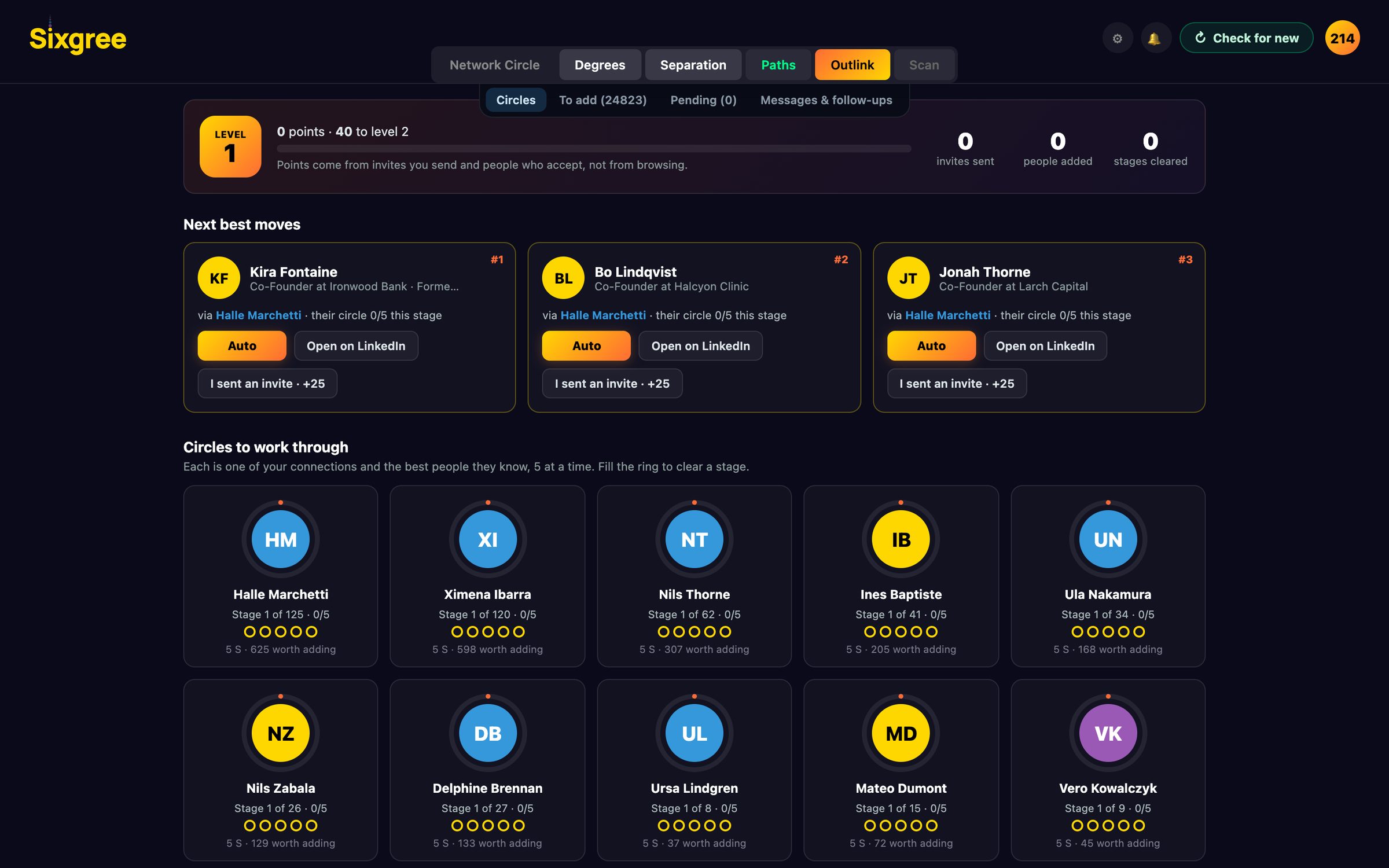
Outlink, on an invented network. Its profile links now open inside Sixgree.
In our own testing, roughly the same number of search pages led to a restriction at about 4 seconds apart and to nothing at about 50. Here's what that taught us, and why scanning by hand now takes a 20-second break every 10 pages.
The Map tab puts your network on a world map, matched on your own computer against GeoNames cities. Pick a city to see which connections reach people there, or pick a connection to see where their circle lives.
Why degree centrality fails on professional networks, how triadic closure creates an 80% acceptance surge, and how transitive trust collapses social distance.