Scanning slowly and safely: pacing, budgets and the honest risk
How the optional Sixgree scanner paces itself, the daily and monthly budgets it keeps to, why it stops at the first push-back, and what the risk to your LinkedIn account really is.
5 min readBy Blake Burford
Sixgree can show you who your connections know, but only if it can read their connection lists. LinkedIn's own data export doesn't include them: it lists the people you're connected to, and nobody else. So the app has an optional scanner that reads them from LinkedIn, in a Chrome window you sign into yourself.
This post is about how that scanner behaves, and why. Start with the part that matters most.
The risk, in plain words
Automating LinkedIn may break its User Agreement, and LinkedIn can restrict accounts that do it. The scanner reads slowly, keeps to a budget and stops at the first push-back, but the risk is yours.
Accounts have been restricted for this, and no amount of pacing makes the risk zero. That's why scanning is optional, and why the two other ways in carry no risk at all:
The sample network: 150 invented connections and the 598 people they know, built into the app, for trying every view.
LinkedIn's own export: Settings & Privacy → Data privacy → Get a copy of your data → Connections. It's read on your computer and shows the people you know, though not who they know.
If you do scan, everything below is there to keep it slow, easy to follow and easy to stop.
You sign in, not the app
The scanner drives your own installed Google Chrome, with a profile of its own that the app keeps in its data folder. You sign into LinkedIn in that window yourself, once. The app never asks for, sees or stores your password. That signed-in profile is the one thing in the data folder that grants access to your account, so the app never puts it into a copy of your network, and the docs ask you never to sync or share it.
A budget, not a race
Every page of someone's connections is a LinkedIn search, and every circle scan opens their profile once. The scanner counts both, against limits you set on the Scan page:
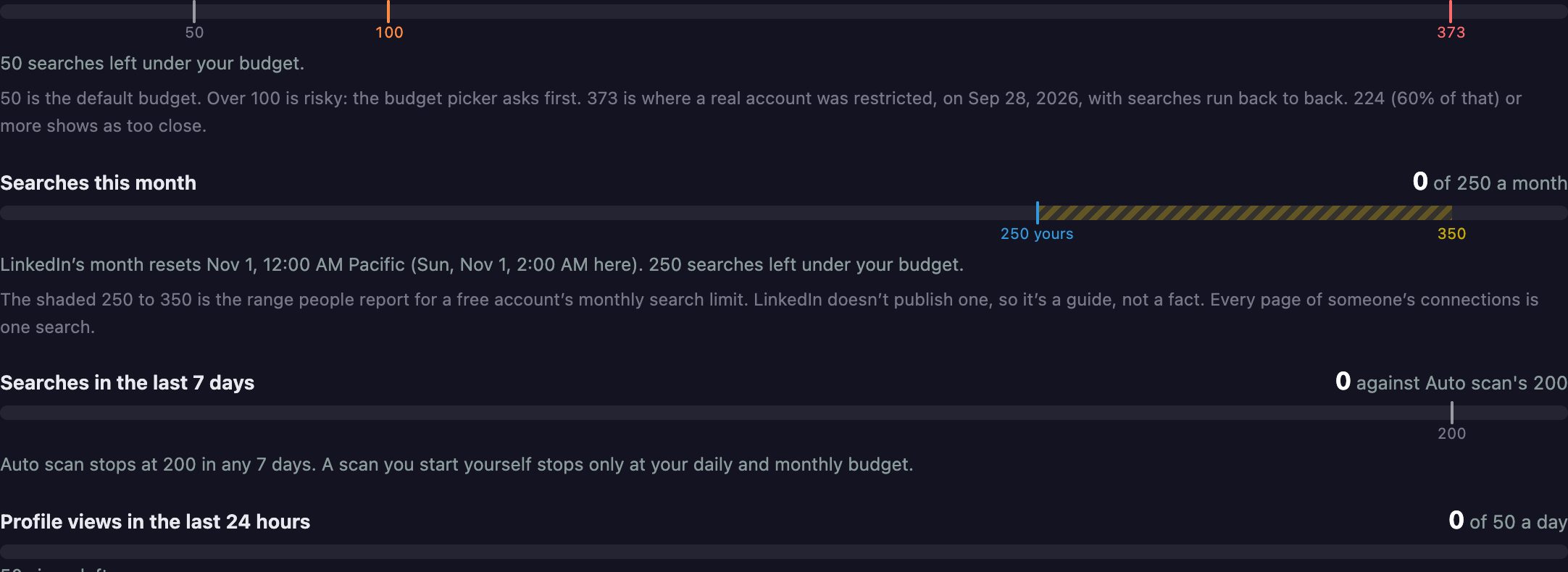
Searches: 50 a day and 250 a month by default. The month follows LinkedIn's own, from midnight Pacific time on the 1st.
Profile views: 50 a day by default, and at least 60 seconds between any two, even across separate scans. There's no "no limit" choice.
When a budget is used, a scan saves what it read and stops. The next one carries on from the same page. Picking more than 100 searches a day, or no monthly cap, makes the page ask first, and a note stays under the budget, with a button back to 50 and 250, for as long as it's that high.
Slow on purpose
Between the budgets, the pacing is deliberately unhurried:
20 seconds before each page of results, and a minute more after every 10 pages;
about two minutes between one person's circle and the next;
so a long list can take around 55 minutes for one person.
The waits are fixed. They're never randomised to look like a person: the scanner doesn't pretend to be anything it isn't. It reads each list to the end by default (or 10, 25 or 50 pages if you choose), saves every 10 pages, and a read that stops carries on from the same page next time. An In progress list on the Scan page shows everyone whose scan stopped partway, with Resume beside each and Resume all.
It stops at the first push-back
The scanner reads what's on the page, and it stops the moment LinkedIn pushes back: a page that won't open, an unusual-activity warning, restricted viewing, the search limit, a security check or a sign-in wall. It saves what it had read, and keeps a copy of what the page said in the data folder, so you can see exactly what happened.
Then a cooldown lock blocks anything that searches, for a day, or until the 1st for the monthly limit. The Scan page shows when it lifts, and you can lift it early if you choose.
And a scanner that can't read its page says so. It never reports "you have no connections" because a page failed to load.
Out of your way
The scanner's Chrome works in the background. Once you've signed in, its window stays out of sight (hidden, on a Mac), so it doesn't cover the app or keep your typing, and Chrome doesn't stop it to ask about saving a password, translating, notifications or restoring pages. It comes forward only when LinkedIn needs you: to sign in again, or to finish a check it asks for, and the notch says so on every page while it waits. If you'd rather watch it work, Show the scanner's Chrome window in the Scan page's Fine-tune keeps it in front.
What it's doing, on every page
While a scan runs, the notch, a small bar hanging under the header's tabs, says on every page what it's doing and how far it's got, and a dot collects along the header's line for each page read. Hover or click the notch to open it: who it's scanning, your searches over the last 24 hours against your budget, the latest line, and Stop. Stop saves what was read, and Resume on the Scan page carries on from that page.
The one thing it sends
The scanner reads. The one thing it sends is a connection request, without a note, and only when you press Auto on someone: one press is one person, never a batch and never on a timer. Auto stops at 15 requests in any 24 hours and 80 in any 7 days, opens their profile once like a scan does, and waits while a scan runs.
The experimental parts
One newer option is marked experimental on the Scan page, and off by default:
All-day pacing (Auto-Bridge), with an Auto scan button once it's ticked. Up to 8 pages in a sitting, then an hour's rest; searches only between 09:00 and 18:00 on your computer's clock; never more than 40 searches in a day or 200 in a week, however high your budget; and at the daily budget it waits for the budget to free up instead of stopping. A monthly limit or a cooldown still stops it. It hasn't yet been tried on a live account, which is why it's labelled the way it is.
There used to be a second, Hide the Chrome window while scanning, which ran Chrome with no window at all. Every scan now runs out of sight in a real Chrome window instead, which comes forward when LinkedIn needs you, so that option is gone.
Why go to this trouble?
Because the people your connections know are the most useful part of your network, and the one part no official export contains. The scanner exists to get that part, for your own use, on your own computer, as gently as possible, with the risk said out loud rather than buried.
The full details, down to what each page of the scanner reads, are in docs/SCRAPING.md.
The Galaxy is a force simulation. The physics lab hands you its controls: what each slider does, the Clusters preset, colour by, find, and a replay of your network by the day you connected that you can save as a video.
Sixgree keeps your network in one folder on your own computer. What that means in practice, what the app contacts and when, and the protections that come with running on localhost.
How Sixgree ranks everyone two steps away, counts every way in, and finds the people only one of your connections can reach, with the formulas, and the invented sample network as the example.